1. Introduction
From the ivsign api you can apply a visual signature appearance to the pades signature, to enable it you must set the flag signvisible to true of the object PDFSignParams and fill the object PdfSignWidgetProps
for all types of signature appearances, there is a list of common properties like :
• autopos signature appearance box auto position enabled/disabled flag
• offsetx signature appearance box axis X position offset from the origin (left bottom corner)
• offsety signature appearance box axis Y position offset from the origin(left bottom corner)
• autosize signature appearance size auto stretch enabled/disabled flag
• width signature appearance width size
• height signature appearance height size
• rotate signature appearance rotation degrees, values 0 to 360
• showonpages Specifies the page location of the signature appearance inside the document, the values are separated by coma:
all = set the signature appearance in all pages, first = first page, last = last page, x = specific page, y-z = page range, examples: 'first,last,3,5,10-20,32-50'
1.1. Signature with default text captions
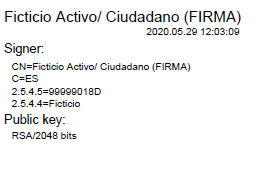
The simplest example would be a text-only visual appearance, which is retrieved from the signer information contained in the digital certificate.
For this, the following parameters must be established in the request:
in the PDFSignParams object, set the field signvisible = true and in widgetprops set the parameter hidetext = false
| example with signature appearance in all pages |
|---|
| "widgetprops": { "sizeheader": 5.5, "sizedatetime": 4, "sizetitlesection": 5, "sizetextsection": 4.5, "autopos": false, "offsetx": 0, "offsety": 0, "autosize": true, "height": 75, "width": 150, "showonpages": "all", "widgetpageoffset": 0, "hidetext": false } |
| example with signature appearance in a range of pages 3-5 |
|---|
| "widgetprops": { "sizeheader": 5.5, "sizedatetime": 4, "sizetitlesection": 5, "sizetextsection": 4.5, "autopos": false, "offsetx": 0, "offsety": 0, "autosize": true, "height": 75, "width": 150, "showonpages": "3-5", "widgetpageoffset": 0, "hidetext": false } |
1.2. Signature with customized text captions
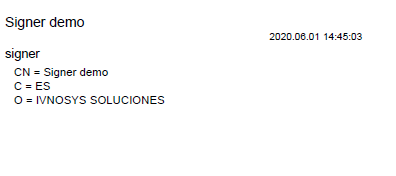
Instead of collecting the certificate information, you can set custom text by modifying the following fields inside the object PdfSignWidgetProps
• captionsigner : Caption signer field
• captionsignerinfo : Caption singer information field
• captionalgorithm : Caption algorithm field
• captionheader : Caption header field
| example |
|---|
| "widgetprops": { "sizeheader": 5.5, "sizedatetime": 4, "sizetitlesection": 5, "sizetextsection": 4.5, "captionsigner": "signer", "captionsignerinfo": "CN = Signer demo\r\nC = ES\r\nO = IVNOSYS SOLUCIONES", "captionalgorithm": "", "captionheader": "Signer demo", "autopos": false, "offsetx": 0, "offsety": 0, "autosize": true, "height": 75, "width": 150, "showonpages": "first", "widgetpageoffset": 0, "hidetext": false } |
1.3. signature with text and image
In addition to displaying text in the signature appearance, you can add an image that represents a handwritten signature or stamp, to add an image the object
signatureimage must be filled.
The supported formats are: jpg (No transparency), png (supports transparency), gif (supports transparency) and bmp (supports transparency).
| example |
|---|
| "signatureimage": { "signback": "/9j/4RjhRXhpZgAATU0..." } |
Results :
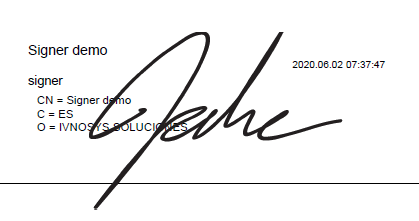
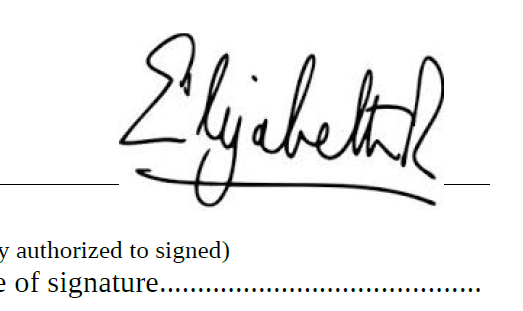
Image without transparency
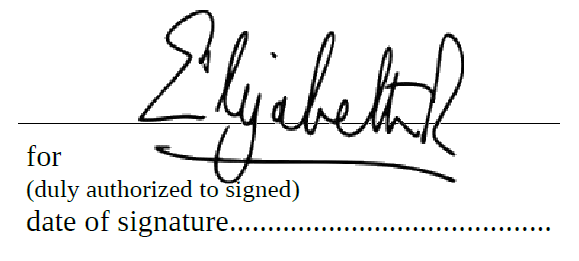
If the image to be applied does not contain transparency (alpha channel), the background of the image will overlap to the document background, in this case you can define
a transparency mask for the image background to create an alpha channel (add transparency to image), so that a binary mask is built for that color, for example:
| example |
|---|
| "signatureimage": { "signback": "/9j/4RjhRXhpZgAATU0...", "transparencymask": { "red": 255, "redtolerance": 0, "green": 255, "greentolerance": 0, "blue": 255, "bluetolerance": 0, "tolerance": 0, } |
Results with transparency mask:
Results without transparency mask:
1.4. signature with image only
An image can be set to only show as a signature appearance, to apply this the field signatureimage must be filled
and set hidetext = true, so that only the image is displayed inside the signature box.
The supported formats are: jpg (No transparency), png (supports transparency), gif (supports transparency) and bmp (supports transparency)

1.5. Signature with custom text defined inside SignatureTextArea
Instead of use the default text fields : captionsigner, captionsignerinfo, captionalgorithm, captionheader the integrator can define a text area that shows lines of text
The text area is composed of a list of text fields , each field has :
•
'organization' (recovered from the certificate), 'organizationunit' (recovered from the certificate), 'title' (recovered from the certificate), 'signerserialnumber' (recovered from the certificate), 'issuercn' (recovered from the certificate), 'signingtime' (recovered from signature), 'reason' (parameter 'cause'), 'location' (parameter 'location')
•
•
•
•
•
•
•
•
WARNING The text does not automatically adjust to the signature box, the integrator must control the limits of the box and the text to be displayed by the position of the text and the size of the font.
1.6. Signature with custom text and image (box division)
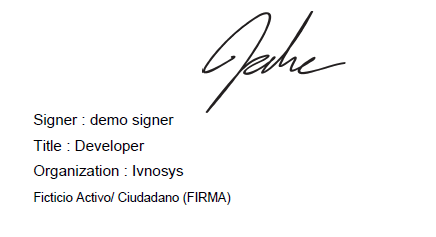
Instead of display overlayed text with image in the signature appearance, the signature box can be divided vertically or horizontally so the image can be displayed on one side and the text on the other.
This can be done by setting the position field for both the image and the text area, posible values :
•
•
•
•
•
Image on left and text on right
| example |
|---|
| "signaturetextarea": { "position":"right", "signaturewidgettextfields":[ { "fieldtype":"freetext", "text":"Test Signer", "label":"Signer : ", "fontsizex":6, "fontsizey":6, "xoffset":5, "yoffset":5 }, { "fieldtype":"freetext", "text":"Developer", "label":"Title : ", "fontsizex":6, "fontsizey":6, "xoffset":5, "yoffset":15 }, { "fieldtype":"freetext", "text":"Ivnosys", "fontsizex":6, "fontsizey":6, "xoffset":5, "yoffset":25 }, { "fieldtype":"subjectcn", "label":"Signer cn :", "fontsizex":5, "fontsizey":5, "xoffset":5, "yoffset":35 } ] }, "signatureimage":{ "signback": "/9j/4RjhRXhpZgAATU0...", "position":"left", } } |
Results :
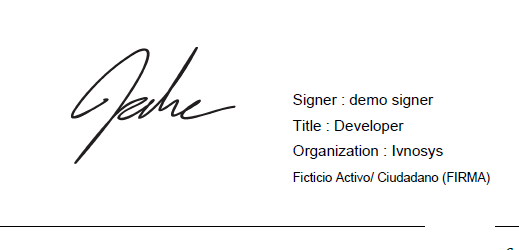
Image on top and text on bottom
| example |
|---|
| "signaturetextarea": { "position":"bottom", "signaturewidgettextfields":[ { "fieldtype":"freetext", "text":"Test Signer", "label":"Signer : ", "fontsizex":6, "fontsizey":6, "xoffset":5, "yoffset":5 }, { "fieldtype":"freetext", "text":"Developer", "label":"Title : ", "fontsizex":6, "fontsizey":6, "xoffset":5, "yoffset":15 }, { "fieldtype":"freetext", "text":"Ivnosys", "fontsizex":6, "fontsizey":6, "xoffset":5, "yoffset":25 }, { "fieldtype":"subjectcn", "label":"Signer cn :", "fontsizex":5, "fontsizey":5, "xoffset":5, "yoffset":35 } ] }, "signatureimage":{ "signback": "/9j/4RjhRXhpZgAATU0...", "position":"top", } } |
Results :